
Connection & setup
Connect a WhatsApp Business Account to a profile through Meta's Embedded Signup or a System User token, choose coexistence or Cloud API only, and set the business profile customers see.
By the end of this page, a WhatsApp number is connected to a profile and you have its accountId.
Cloud API only or coexistence
Every route ends on Meta's Cloud API through Embedded Signup or a System User token. No route pairs a browser session to a phone the way WhatsApp Web does.
- Cloud API only (
onboarding=api) runs entirely in the browser. - Coexistence keeps the number in the WhatsApp Business app and adds one step on the phone: the user scans a QR code Meta shows during signup (coexistence).
Before you start
You need an API key, a profile id (create a profile) and a Meta Business account at business.facebook.com. The WhatsApp Business Account (WABA) can be created during the flow.
Three rules apply whichever route you take:
- Several numbers per profile. A profile can hold several WhatsApp numbers, each its own account. A number can be live on one profile only.
- A Zernio-provisioned number is pinned to its profile. Connect it from the profile it was bought for; any other profile gets a
409. Move it first withPATCH /v1/whatsapp/phone-numbers/{id}/profileif it should live elsewhere. - Coexistence is the default. Unless you pass
onboarding=api, Embedded Signup offers to keep the number in the WhatsApp Business app, which limits the API (coexistence).
Step 1: Choose the number
Any number in a WABA can be connected. Where it comes from decides what else it can do:
| Number | How it connects | Calls and SMS |
|---|---|---|
| Bought or ported through Zernio | Embedded Signup; the number is pre-verified and appears as Verified in Meta's picker | Yes, on the same number |
| Your own number on your own carrier | Embedded Signup, or credentials | No; it has no Zernio line behind it |
Buying, porting, per-country pricing and KYC are on the Phone numbers pages. The WhatsApp-specific rules for a number are on WhatsApp phone numbers.
A purchase starts this flow by itself, because connectWhatsapp defaults to true on POST /v1/phone-numbers/purchase.
Step 2: Start Embedded Signup
Call GET /v1/connect/whatsapp with profileId, redirect_url and onboarding.
The response is a URL where the user runs Meta's Embedded Signup: log in to Meta, create or pick a WABA, pick a phone number.
The same redirect flow connects every platform. No Facebook JavaScript SDK is needed, and it works from any domain.
import Zernio from '@zernio/node';

const zernio = new Zernio();
const profileId = '66a1f0c2a4b9d3e8f1a2b3c4';

const { data: connect } = await zernio.connect.getConnectUrl({
  path: { platform: 'whatsapp' },
  query: { profileId, redirect_url: 'https://myapp.com/callback', onboarding: 'api' }
});

console.log(connect.authUrl);
Response (200):
{
  "authUrl": "https://www.facebook.com/v21.0/dialog/oauth?client_id=...",
  "state": "..."
}
onboarding picks the screen Meta shows:
onboarding | Meta shows | Result |
|---|---|---|
api | The WABA and number picker | Cloud API only. Use it for a Zernio-provisioned number, a number already on Cloud API elsewhere, or whenever you need groups or calling. |
business_app (default when omitted) | "Connect existing WhatsApp Business app" | Coexistence: the number stays in the app and works on the API with the limits below. |
Send the user's browser to authUrl. When they finish, they land on redirect_url with the connection appended:
https://myapp.com/callback?connected=whatsapp&profileId=66a1f0c2a4b9d3e8f1a2b3c4&accountId=66b2e19d8c3f5a7e9d0b1c2d&username=%2B13105551234accountId is the id every WhatsApp call takes from here on.
If Embedded Signup fails, the browser lands on the same redirect_url with error and platform appended. The WhatsApp values are:
whatsapp_errorone_whatsapp_per_profilewhatsapp_number_already_connectedwhatsapp_number_pinned_to_profileconnection_cancelled
When the user's Facebook login can reach more than one number, this flow ends on a Zernio number picker (or, with headless=true, on your own).
To skip that second choice, use the hosted signup below.
Headless mode: pick the number yourself
WhatsApp grants access per WABA.
When the WABA the user picked holds 2 or more numbers, a headless flow (headless=true on the call above) sends the user to your redirect_url with step=select_phone_number, profileId and tempToken.
A single-number WABA connects in the callback and never reaches this step.
List the numbers with GET /v1/connect/whatsapp/select-phone-number, show your own picker, then bind one:
const params = new URL(requestUrl).searchParams; // requestUrl: the URL your handler received
const tempToken = params.get('tempToken')!;

const { data: numbers } = await zernio.connect.listWhatsAppPhoneNumbers({
  query: { profileId, tempToken }
});

const chosen = numbers.phoneNumbers[0];

const { data: selected } = await zernio.connect.completeWhatsAppPhoneSelection({
  body: { profileId, phoneNumberId: chosen.id, wabaId: chosen.wabaId, tempToken }
});

console.log(selected.account.accountId);
The list returns the numbers across the user's WABAs.
Response (200):
{
  "phoneNumbers": [
    {
      "id": "1875844705851813",
      "display_phone_number": "+1 310-555-1234",
      "verified_name": "Acme Corp",
      "quality_rating": "GREEN",
      "name_status": "APPROVED",
      "messaging_limit_tier": "TIER_1K",
      "wabaId": "317766992490131",
      "wabaName": "Acme WABA"
    }
  ]
}
The selection binds the number, exchanges the short-lived token for a long-lived one and subscribes the WABA to webhooks.
Response (200):
{
  "message": "WhatsApp phone number connected successfully",
  "account": {
    "accountId": "66b2e19d8c3f5a7e9d0b1c2d",
    "platform": "whatsapp",
    "username": "+1 310-555-1234",
    "displayName": "Acme Corp",
    "isActive": true,
    "selectedPhoneNumber": "+1 310-555-1234"
  }
}
Hosted Embedded Signup: the number preselected
Meta only tells a page that opened its popup which WhatsApp account and number the user picked. The redirect flow above gets an authorization code and nothing else.
That is fine for a user whose Facebook login manages one WhatsApp account: the callback finds one number and connects it.
A user whose login manages several accounts (agency staff, a multi-brand owner) sees every number that login can reach. They pick once in Meta's popup and again in the picker.
Add signup=hosted to the same call, and authUrl becomes a page on zernio.com instead of Meta's dialog.
That page opens Meta's popup itself, learns the number the user picked, connects exactly that one, and sends the user on to your redirect_url.
Nothing to embed on your side, no Facebook SDK, no domain to register.
const { data: connect } = await zernio.connect.getConnectUrl({
  path: { platform: 'whatsapp' },
  query: { profileId, redirect_url: 'https://myapp.com/callback', onboarding: 'api', signup: 'hosted' }
});

// Send the user's browser here; it is a zernio.com page, not Meta's dialog.
console.log(connect.authUrl);
Response (200):
{
  "authUrl": "https://zernio.com/connect/whatsapp/embedded-signup?profileId=66a1f0c2a4b9d3e8f1a2b3c4&redirect_url=https%3A%2F%2Fmyapp.com%2Fcallback&connect_token=...&onboarding=api",
  "state": "..."
}
The user taps one button on that page and completes Meta's popup. They land on redirect_url with the same parameters as the redirect flow, plus the short-lived connect_token the page used:
https://myapp.com/callback?connected=whatsapp&profileId=66a1f0c2a4b9d3e8f1a2b3c4&accountId=66b2e19d8c3f5a7e9d0b1c2d&username=%2B13105551234&connect_token=...On failure the user lands on redirect_url with error and platform=whatsapp. It carries the same values and extras as the redirect flow:
one_whatsapp_per_profile,whatsapp_number_already_connectedandwhatsapp_number_pinned_to_profile(withis_user_fixable=true)payment_required(withreasonanddashboard_url)whatsapp_error, with Meta's own reason inerror_messagewhen it reported one
Two values are specific to this flow:
connection_cancelledwhen the popup was closed before finishing.error_messagecarries Meta's last step or error when there is one.session_expiredwhen the user took longer than the 60 minutes the page stays valid for. CallGET /v1/connect/whatsappagain to restart.
onboarding works as above, and a Zernio-provisioned number is attached like on the redirect flow.
headless has no effect here, because there is no selection step left to hand you.
Under the hood the page calls POST /v1/connect/whatsapp/embedded-signup (Connect from Embedded Signup) with the wabaId and phoneNumberId Meta reported. You never call it yourself.
What the user sees
The page shows the same guidance as the Zernio dashboard, so nobody is left guessing inside Meta's popup:
- Pre-verified Zernio number (a number you provisioned through Zernio for this profile): the page names it ("+1 657 366 2058 is ready, no code will be asked") and tells the user to pick exactly that entry from Meta's number list, with a short video showing where it appears.
- Coexistence (
onboarding=business_appor omitted): a 2-minute video of the QR pairing from the WhatsApp Business app. - Standard signup (
onboarding=api): a short video of the portfolio and account selection.
Once the popup opens, the page turns into a step-by-step follow-along checklist (log in, pick the number, choose the portfolio, and so on). It stays visible next to Meta's window.
Branding
The page carries the Zernio logo (it is co-branded, not white-label).
It takes three optional parameters on the same GET /v1/connect/whatsapp?signup=hosted call. They are stored on the signup session when the link is issued, so nothing in the page URL can change them.
| Parameter | Effect | Rules |
|---|---|---|
brandName | Page title becomes "Connect your WhatsApp number to brandName" | 1 to 60 characters, trimmed |
primaryColor | Primary button and step accents | Hex #RRGGBB |
language | Page and checklist copy (videos stay in English) | en (default), es or pt-BR |
curl "https://zernio.com/api/v1/connect/whatsapp?profileId=66a1f0c2a4b9d3e8f1a2b3c4&redirect_url=https://myapp.com/callback&signup=hosted&brandName=Trama&primaryColor=%231D4ED8&language=es" \
  -H "Authorization: Bearer $ZERNIO_API_KEY"
These return a 400 (invalid_field_value naming the parameter):
- any of the three without
signup=hosted - a colour that is not
#RRGGBB - a language other than
en,esandpt-BR
There is no logo parameter.
WhatsApp Business app coexistence
A business that already uses the WhatsApp Business app can keep the number there and connect it to the Cloud API at the same time.
Embedded Signup offers this when onboarding is business_app or omitted.
The number then works in both places:
- Messages are mirrored between the app and the API (up to 6 months of history is synced).
- Contacts from the app are imported.
- The business can keep sending individual messages from the app.
This route needs the phone in the room.
- The user enters the number and confirms the business details. Meta shows a QR code in the Embedded Signup window.
- The user opens the WhatsApp Business app and taps the camera icon at the top right to scan it, or scans it from Settings > Linked devices.
- The user confirms the account details back in the browser.
The number must already be active in the WhatsApp Business app. The consumer WhatsApp app does not qualify.
The Cloud API-only route has no scan step.
Coexistence changes what the API can do on that number:
| Feature | On a coexistence number |
|---|---|
| Throughput | Fixed at 20 messages per second |
| Groups created in the app | Not synced; not visible through the API |
| Groups API | Not supported. Needs a Cloud API-only number |
| Voice and video calls | Not supported through the API |
| Disappearing messages | Turned off for all 1:1 chats |
| View once messages | Disabled for all 1:1 chats |
| Broadcast lists | Disabled in the WhatsApp Business app |
| Profile photo | Locked; manage it in the app |
Everything else uses the same endpoints as a Cloud API-only number.
message.sent carries source: "whatsapp_business_app" for sends made from the phone, so you can tell them from API sends.
Leaving coexistence. Meta has no API to take a number out of coexistence. The business disconnects on the phone:
WhatsApp Business app > Settings > Account > Business Platform > DisconnectMeta notifies Zernio and the account is deactivated. An account.disconnected event fires within seconds with Meta's own reason (how detection works).
Meta's notification is best-effort, so never read the absence of that event as proof the channel is alive. Confirm with the liveness check.
Then reconnect the number with onboarding=api, or with credentials, and the Groups API is available.
Connect with credentials (headless)
If you hold Meta credentials already, connect without a browser. This suits server-to-server integrations, CLI tools and automated provisioning.
- Create a System User in Meta Business Suite.
- Generate a permanent token with
whatsapp_business_managementandwhatsapp_business_messaging. Addwhatsapp_business_manage_eventsfor Click-to-WhatsApp conversions. - Copy the WABA id and phone number id from WhatsApp Manager > Account Tools > Phone Numbers.
Call POST /v1/connect/whatsapp/credentials with profileId, accessToken, wabaId and phoneNumberId. Add pin when the number has two-step verification on; without it Meta rejects the registration.
const { data: credentials } = await zernio.connect.connectWhatsAppCredentials({
  body: {
    profileId,
    accessToken: 'EAABsbCS...your-system-user-token',
    wabaId: '317766992490131',
    phoneNumberId: '1875844705851813',
    pin: '481902'
  }
});

console.log(credentials.account.accountId);
Response (200):
{
  "message": "WhatsApp connected successfully",
  "account": {
    "accountId": "66b2e19d8c3f5a7e9d0b1c2d",
    "platform": "whatsapp",
    "username": "+1 310-555-1234",
    "displayName": "Acme Corp",
    "isActive": true,
    "phoneNumber": "+1 310-555-1234",
    "verifiedName": "Acme Corp",
    "qualityRating": "GREEN"
  }
}
Zernio validates the credentials against Meta, creates the account, subscribes the WABA to webhooks and registers the number on the Cloud API.
When phoneNumberId is not in the WABA, the 400 lists availablePhoneNumbers so you can correct it.
Any callback URL you had configured on this WABA stops receiving events at once, with no overlap window. Do not unsubscribe your app from the WABA afterwards.
Connecting subscribes your Meta app to this WABA with a callback override that routes its webhook delivery to Zernio. Unsubscribing also cuts off Zernio's delivery, and recovery means calling this endpoint again.
Business profile
The business profile is what customers see when they open your number in WhatsApp.
Read it with GET /v1/whatsapp/business-profile. Change it with POST /v1/whatsapp/business-profile; only the fields you send are updated.
about is at most 139 characters, description at most 512, and websites holds at most 2 entries.
const { data: profile } = await zernio.whatsapp.getWhatsAppBusinessProfile({
  query: { accountId }
});

console.log(profile.businessProfile.about);

await zernio.whatsapp.updateWhatsAppBusinessProfile({
  body: {
    accountId,
    about: 'Widgets, shipped the same day',
    description: 'Acme sells widgets to workshops in 40 countries.',
    email: 'hello@example.com',
    websites: ['https://example.com']
  }
});
Response (200), the read:
{
  "success": true,
  "businessProfile": {
    "about": "Widgets, shipped the same day",
    "address": "1 Main St, Springfield",
    "description": "Acme sells widgets to workshops in 40 countries.",
    "email": "hello@example.com",
    "profilePictureUrl": "https://...",
    "websites": ["https://example.com"],
    "vertical": "RETAIL"
  }
}
Response (200), the update:
{
  "success": true,
  "message": "Business profile updated successfully"
}
The profile picture, display name and WhatsApp username have their own endpoints under Business profile.
On a coexistence number, the picture is locked and managed in the WhatsApp Business app.
Scopes
Embedded Signup requests these scopes; the scopes section of the connecting guide explains how they are granted and checked.
| Scope | What it enables |
|---|---|
whatsapp_business_messaging | Send and receive messages |
whatsapp_business_management | Manage WABA assets: templates, phone numbers, settings |
whatsapp_business_manage_events | Conversions API events and CTWA dataset provisioning |
business_management | Discover WABAs owned by your Meta Business during connection |
A System User token you mint yourself carries only the permissions you assigned; Zernio cannot extend it.
From the dashboard
The same flow runs from Connections when you connect by hand: open the WhatsApp card, click + Connect, then choose Get a new number or Use my own number.
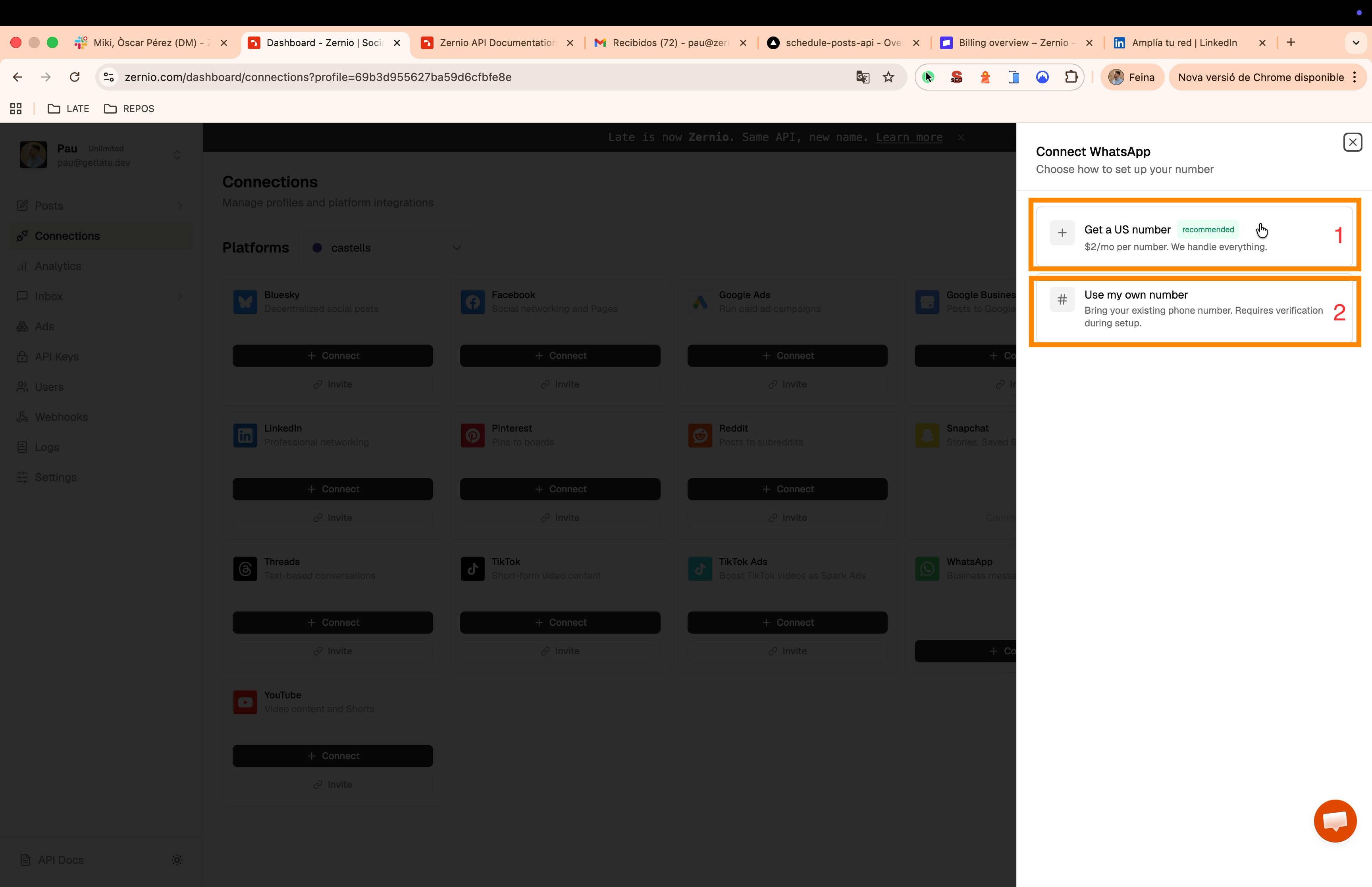
A new number asks for a country. The price per country shows before you confirm.
- US and other instant countries verify in about 30 seconds.
- Regulated countries need a one-time KYC form first. The number activates within 1 to 3 business days, with an email and the
whatsapp.number.activatedevent when it is ready.
Continue to WhatsApp setup hands over to Meta's Embedded Signup, where you create or pick a WABA and then select the number, already marked Verified.
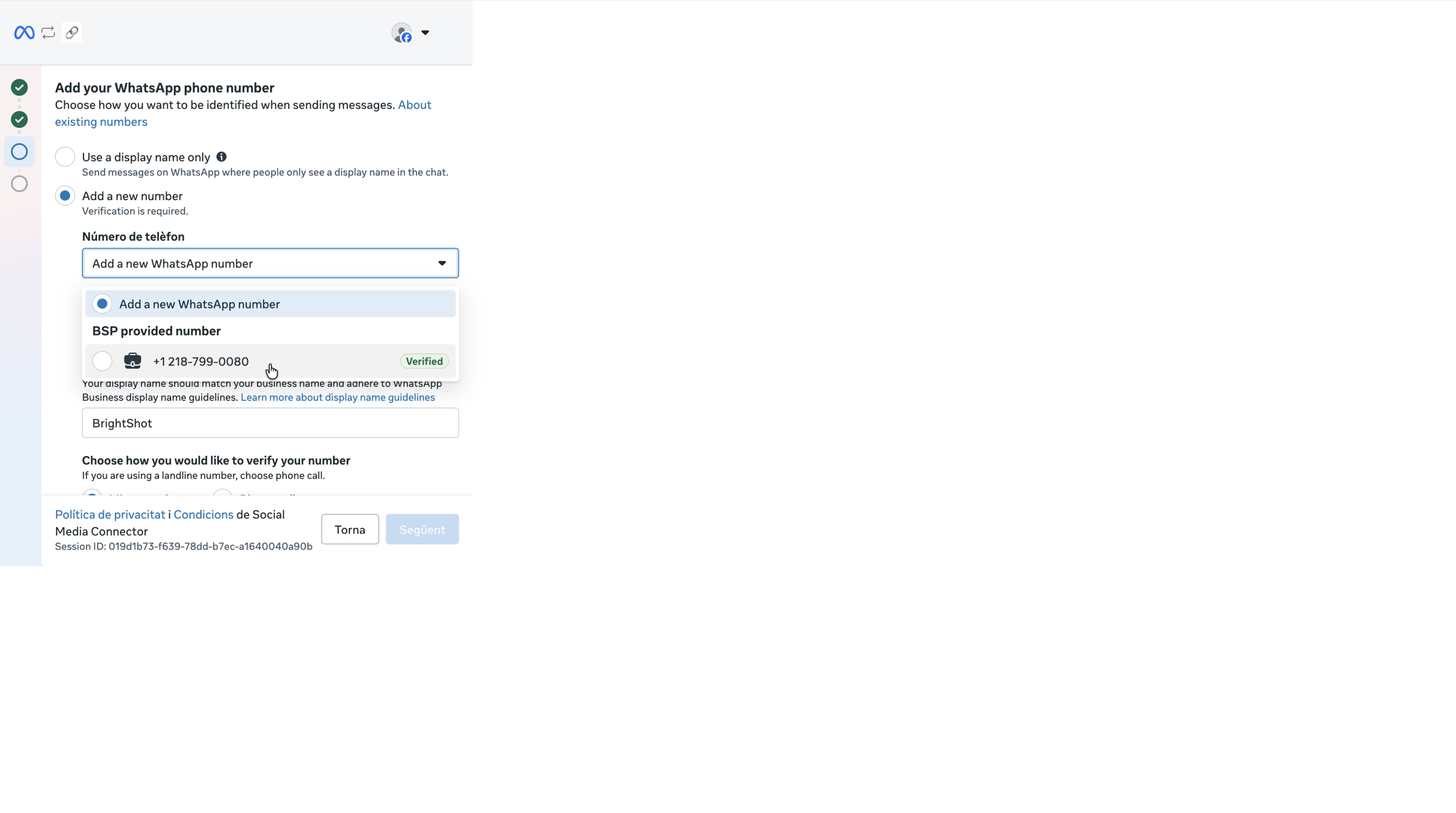
In Meta's window, skip Connect existing WhatsApp Business app account if you need the Groups API or calling: it activates coexistence, which disables both. Create a new WABA or pick a number outside the WhatsApp Business app.
The account then shows as connected in Connections, where Settings opens the templates list and the Business Profile tab edits the fields above.
If it fails
A 409 from the credentials or selection call means the number is already spoken for. code says which rule it hit:
code | Meaning | Fix |
|---|---|---|
ONE_WHATSAPP_PER_PROFILE | The profile already holds a WhatsApp number | Connect this number to a different or new profile |
WHATSAPP_NUMBER_PINNED_TO_PROFILE | A Zernio-provisioned number pinned to another profile | Connect from that profile, or move it first with PATCH /v1/whatsapp/phone-numbers/{id}/profile |
WHATSAPP_NUMBER_ALREADY_CONNECTED | The number is live on another profile or team | Disconnect it there first |
The redirect flow reports the same three as error=one_whatsapp_per_profile, whatsapp_number_pinned_to_profile and whatsapp_number_already_connected on your redirect_url.
A 402 is a billing gate, described in connecting accounts.
After connecting. A number that sends (#200) You do not have the necessary permission on every message has a two-step PIN Meta rejected. Register it again with the PIN on WhatsApp phone numbers.
Related
- WhatsApp phone numbers: number status, the liveness check, registering with a PIN.
- Phone numbers: buy, port, KYC, per-country pricing.
- Connecting accounts: the redirect flow and headless mode shared by every platform.
- Templates: the first thing to create after connecting.
- Group chats: why a Cloud API-only number matters.
Send template messages, broadcasts, flows and replies from a WhatsApp Business Account with the Zernio API, plus groups, calling and Click-to-WhatsApp attribution.
Phone Numbers
Read a WhatsApp number's live status from Meta, tell a dead channel from a live one, and register a number whose two-step PIN blocked it.